Locking the DASH4PRO to a Data Logger (5.3 Lock DASH4PRO)
Just after production the DASH4PRO is programmed to operate with any data logging product from Race Technology (such as the DL1 or DL2). It is however possible to lock the DASH4PRO to work with only one Data Logger (DL1/DL2).
Note: Before progressing any further please make sure that you know the serial number of your Race Technology Data Logger. The serial number of the Data Logger can be found on the base of the unit. Alternatively you can find the serial number by loading a run file created by your logger into the RT Analysis software and going to the Run Manager. The serial number will be displayed under Run details.
The following method should be employed to lock the DASH4PRO:
1. Enter menu display mode by pressing the MENU button.
2. Use the UP/DOWN buttons and navigate to menu item 5 Firmware Control in the main menu. Press SELECT button to enter into Firmware Control submenu.
3. Then use the UP/DOWN buttons to navigate to menu item 5.3 Lock DASH4PRO.
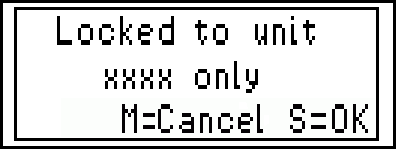
4. If the device is already locked to a Data Logger it will display “Locked to unit xxxx only”on screen. Here “xxxx” denotes the serial number of the Data Logger that the DASH4PRO is locked into.
If the DASH4PRO is not locked it will display a random number. You should note down the random number and exit the menu by pressing the MENU button. You should then contact Race Technology to obtain an authorisation key.
5. Once you receive the authorisation key you should you should repeat steps 1 to 3 and when presented with the random code, should press the SELECT button. Then the message “Enter authorisation code” will be displayed on screen. Press the SELECT button to continue.
6. A number entry screen will be displayed, into which you have to enter the authorisation code.
At first a flashing cursor will appear. Press the UP and DOWN buttons and select the appropriate number. Press the SELECT button to confirm the entered number. The cursor will progress to the next position to accept the next number.
If you made a mistake at any point during the number entry procedure, press the MENU button to exit the menu screen. You can the repeat stages 1 through 6 and re-enter the correct authorisation code. Once the authorisation code has been fully entered, press the SELECT button again to confirm the entered code.
7. If the authorisation code you entered is incorrect the “Invalid authorisation code” message will be displayed. In such a case please check your authorisation code.
If you entered the correct authorisation code you will be asked to enter the serial number of the Data Logger. Following this the DASH4PRO will be locked to your Data Logger.
 My basket |
Checkout |
Add to email list
My basket |
Checkout |
Add to email list




 Edit
Edit History
 Print
Print Download (.HTML)
 PDF
PDF