Using the Configuration Software
Note: You will require a special connector to connect the DASH4PRO to the PC (not shipped with the DASH4PRO). For more information please contact Race Technology.
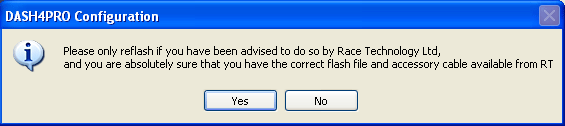
1. Start the DASH4PRO configuration programme and click on the File -> Re-flash Device option from the menu. It will bring up the following message: -
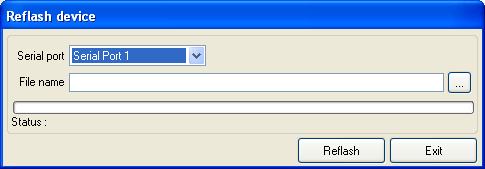
2. If you are sure you need to re-flash the DASH4PRO, click on Yes. The following dialogue box will appear:-
3. Select which serial port the Data Logger is connected to.
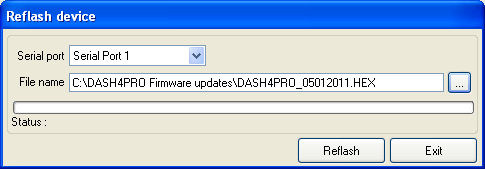
4. Click on the browse button to select the firmware file that should be used to re-flash the DASH4PRO. It is essential that you select the correct firmware file, if you do not, then the re-flash will fail.
5. Once you click the re-flash button, the program will attempt to re-flash the DASH4PRO. The procedure may take a couple of minutes, the progress of the re-flashing will be shown in the status field of the dialogue box:-
6. During re-flashing DASH4PRO’s turns off the backlight and displays the message Programming...
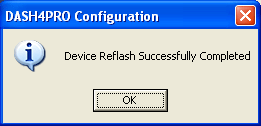
7. When re-flashing completes successfully, DASH4PRO turns on the backlight and following message appears is given by the software:
If for any reason re-flash fails, DASH4PRO displays the following message.
Please Restart
Restart the DASH4PRO and start the re-flashing procedure from the beginning.
 My basket |
Checkout |
Add to email list
My basket |
Checkout |
Add to email list




 Edit
Edit History
 Print
Print Download (.HTML)
 PDF
PDF