Variable tree
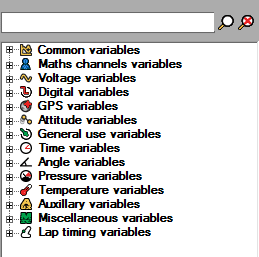
The Variable Tree is displayed along the right hand side of the main display screen.
It is a list of variables that can be assigned to the controls. All of the variables can be categorized into fifteen major groups. (CAN variable category will be shown only when at least one CAN/DBC file is loaded)
- Standard variables
- Maths channels variables
- Voltage variables
- Digital variables
- GPS variables
- Attitude variables
- General use variables
- Time variables
- Angle variables
- Pressure variable
- Temperature variables
- Auxillary variables
- Miscellanious variables
- Lap timing variables
- CAN variables
Assigning variables to controls
To associate a variable with a displayed screen object, drag the selected variable from the variable tree and drop it on the correct “Group” in the design area. This will change the properties of the group to the variable and default display name. Edit the display name to suit the layout.
Variable Properties
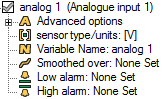
Each and every variable has a set of properties. To make alterations to the variables, click on the property that you wish to edit. This will open up a window that is specific to the property that you wish to alter.
The list of properties is as follows:
Advanced options
The Maximum rate of change option will allow you to set a value which limits how much the variable can change over one second. This can be disabled by setting the value to zero.
Sensor type / Units
You can select a standard transformation relevant to the selected variable from a drop down list.
You can write an equation that will be used to by the DASH5PRO to convert the native values received from the data logger into the value that is shown on the DASH5PRO display.
The independent variable x is used to refer to the present variable.
e.g. If you wish to convert a voltage value to millivolts, you can write the following equation.
Variable Name
This is the name assigned to the variable. Name of any variable can be changed to suit with your requirements.
Smoothed over
This is a smoothing filter that is used to smooth out any peaks and troughs in the data. Smoothing can be disabled by setting this value to zero.
Low alarm
f the value of the given variable goes below the low alram value, the low alarm will be triggered on the DASH5PRO and the user will be notified.
High alarm
If the value of the given variable becomes grater the high alarm value, the high alarm will be triggered on the DASH5PRO and the user will be notified.
Note: If both the low and high alarm values are set to zero, alarms are disabled for this variable.
 My basket |
Checkout |
Add to email list
My basket |
Checkout |
Add to email list




 Edit
Edit History
 Print
Print Download (.HTML)
 PDF
PDF