Editing controls
You can view and edit the properties of a control in the following ways:
Using the properties dialog
There are two ways to open the properties dialog of a control:
1. Using the context menu of the control (Right click within the control, then click "Properties")

or
2. Select the control, then click "Properties" button  in the toolbar.
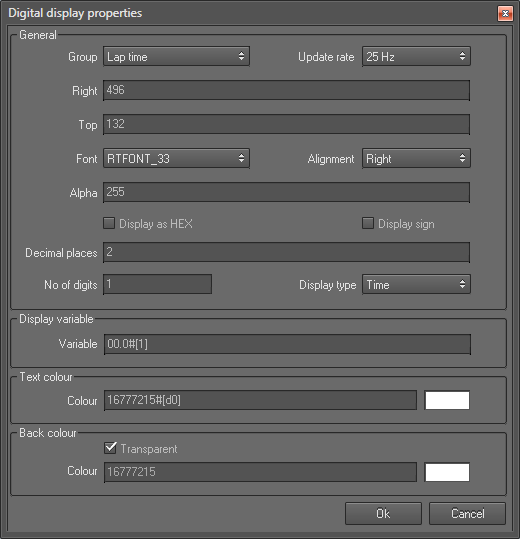
The following property dialog shows the properties of a digital display control:
Using the property viewer dialog
Property viewer dialog provides a quick access to the properties of a selected control. (View -> Property viewer). It displays different types of editing fields, depending on selected control. These edit fields include edit boxes, drop-down lists, and links to custom editor dialog boxes.
Please check the following sections for more informaiton about controls and their properties:
- Bitmap Properties
- Simple Text Properties
- Digital Display Properties
- Track Map Properties
- Dynamic Line Properties
- Video Source properties
 My basket |
Checkout |
Add to email list
My basket |
Checkout |
Add to email list




 Edit
Edit History
 Print
Print Download (.HTML)
 PDF
PDF