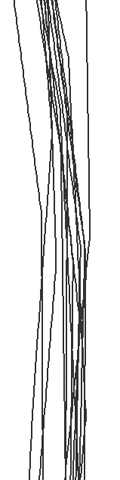
My track maps are a bit jagged – how do I improve the resolution?
There are two solutions to this problem. They may be applied separately or used in conjunction with one another.
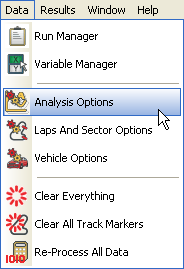
To apply the first option, enter the "Data" menu at the top of the screen, and select "Analysis Options".
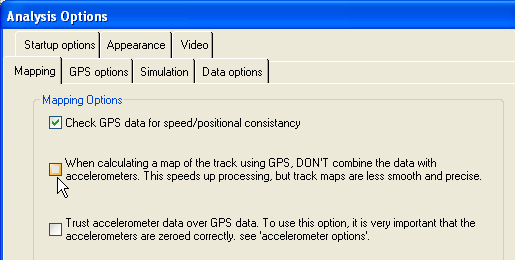
This will open up a window. Un-tick the box that prevents the data from the accelerometers from being displayed, and then press "OK".
With the accelerometer data being added to the GPS samples, a slight smoothing of the track will be noticeable.
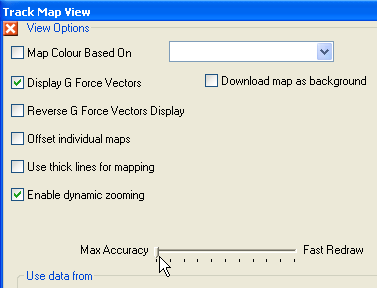
Alternately, enter the "Options" section in the top, left hand corner of the track map window. Here, you will find the bar shown below. By moving the control to the left, you will increase the levels of accuracy shown.
N.B. When using this tool, the more accurate the track map is, the longer it will take to draw.
 My basket |
Checkout |
Add to email list
My basket |
Checkout |
Add to email list




 Edit
Edit History
 Print
Print Download (.HTML)
 PDF
PDF