View Menu
Options
Once you select the options menu, the Options dialog box will appear. It can be used to change various settings in the Monitor software.
The user can enter the grid size that is needed in the appropriate box.
By using the Show Grid check box, the user can either enable or disable the grid within the design window. (In run mode the grid points are set to be invisible).
When the Snap To Grid option is enabled, the controls will be aligned to the grid. The user can set the label colour of both the background and the design window by clicking on the colour box.
- Label color and Back color
|
|
|
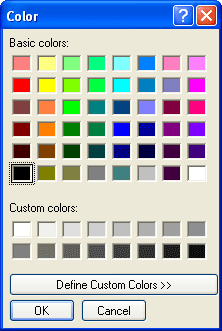
Once you click on the colour option, the Colour dialog box will appear on the screen. You should make your selection from the choices given. If the needed colour is not in the list, the user should click on Define Custom Colour button and select the "colour". To activate the selected colour, press OK. If you would like to keep the existing colour, press the Cancel button.The selected colour will instantly be displayed in the colour box.
|
|
|
|
By pressing the Reset button ( in Options dialog ), the colour will automatically reset to the Default. Finally, the user should press the Ok button to activate the selected options or Cancel to keep the existing settings.
|
 My basket |
Checkout |
Add to email list
My basket |
Checkout |
Add to email list




 Edit
Edit History
 Print
Print Download (.HTML)
 PDF
PDF