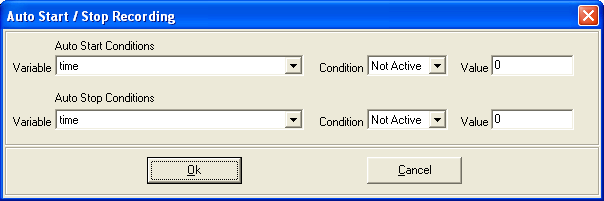
Auto Start/Stop recording
Auto Start/Stop Recording feature allows you to add Auto Start/Stop recording conditions to your graphics overlay file during the design.
Once the overlay file is loaded into the VIDEO4 system and if Auto start condition is met, VIDEO4 system starts recording and it will continue until the Auto Stop Condition become true.
It is possible to set either of these conditions or both of them as required. To disable a condition set the ‘Condition’ property value to ‘Not Active’.
Adding Auto Start/Stop conditions
Following steps describe how to add a condition that evaluates to true when speed exceeds 100 Kph
( Speed > 100 ).
1. Click File -> Auto Start/Stop Recording to open the Auto Start/Stop dialog.
2. Select a variable from the ‘Variable’ combo box.
3. Select the condition from the ‘Condition’ combo box. (Selecting ‘Not Active’ will disable the condition)
4. Enter a value to the ‘Value’ field that is relevant to the variable type.
5. Click ‘OK’ button to save the condition and close the dialog.
 My basket |
Checkout |
Add to email list
My basket |
Checkout |
Add to email list




 Edit
Edit History
 Print
Print Download (.HTML)
 PDF
PDF