CAN on DASH5PRO
CAN data is a standardised form of communication between in-vehicle systems, DBC files are used to decode the data messages. Different options are available on the DASH5 PRO, with multiple CAN ports, CAN receive, CAN transmit, and Raw CAN licences available – See our website sales pages for details.
This guide explains how to load a DBC file and use the CAN messages in the DASH5 PRO configuration software.
Configuring CAN
1. The .DBC file must be loaded in using the “Var and CAN manager”. Select “File -> Load CAN/DBC file” menu item to launch it.
2. Select the CAN tab on the left hand side of the “Var and CAN manager” software window.
3. Click “add DBC or CAN file” to load the file.
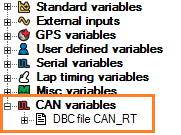
After a DBC file is added it will appear under CAN variables in the variable tree in the DASH5 PRO configuration software.
Select the menu item File -> CAN settings to open the CAN settings dialog.
CAN baud rates of port 1 & 2 and the variable timeouts values need to be set according to the CAN device configuration. Default CAN baud rate setting is 1 Mbit.
If silent mode is ticked, the acknowledgement on reception of every CAN message will be off. Silent mode should be off unless specifically required.
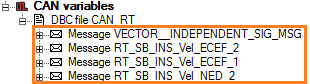
Expanding the DBC file will display the messages contained within.
Each message can have sub message types based on a filter configuration. When expanded, several sub messages will list down (with same CAN address with different filter locations).
In this example the first message contains several sub messages.
Expanding a sub message will list configuration. The maximum rate of change, variable name, smoothing, Low alarm, High alarm values can all be edited here. The CAN specific configuration cannot be edited and is read from the .DBC file.
Like other variables, it is possible to drag and drop a CAN variable to a DASH5PRO display control such as Numeric display, graph and bar graph. The variable will appear in variable box under properties of each control.
 My basket |
Checkout |
Add to email list
My basket |
Checkout |
Add to email list




 Edit
Edit History
 Print
Print Download (.HTML)
 PDF
PDF