How to Configure the Built in Serial ECU decoder on DASH5 PRO
An ECU interface license are required for this option to work.
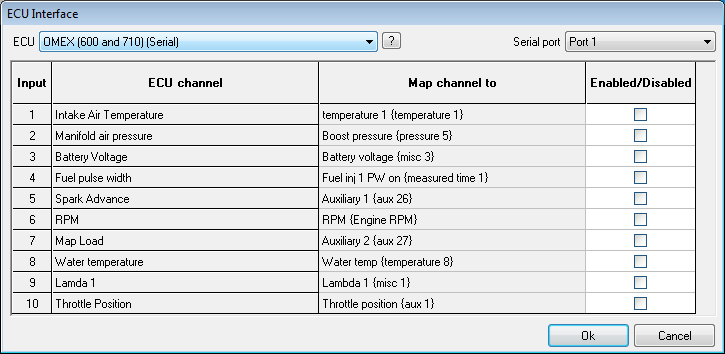
Click on the menu item File=>ECU interface to open the ECU interface dialog.
Using the ‘ECU’ drop down list select the ECU which you require to decode, for the above example the OMEX 600 & 710 ECU has been selected.
Select the serial port to which the ECU will be connected. Where just an ECU is connected to the DASH5PRO Port 1 is recommended so that no breakout cable is required. For applications involving a display connect
the display to Port1 and the ECU to Port 2
Select the channels that you wish to decode and log from the ECU, the information available from ECUs differ between ECU manufacturers
To do this simply click in the Enable/Disable box next to the variable to enable it, a green tick represents a channel which has been enabled.
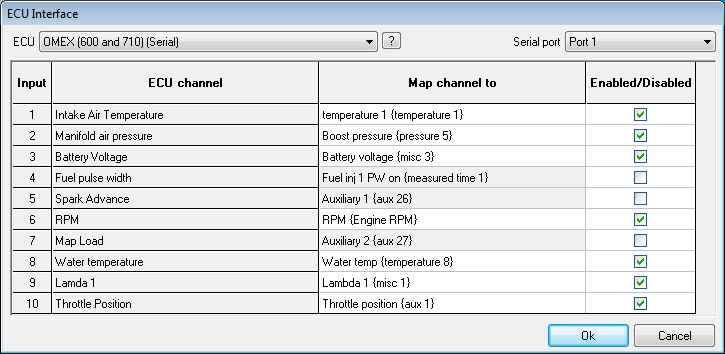
:
Only select the channels you are interested in. This ensures that only the required data is logged on the DASH5PRO, and file sizes are kept to a minimum, this can be useful when logging for long periods of time.
Click OK to be taken back to the configuration software main menu.
Save or send the configuration as required.
Connecting the ECU to the DASH5 PRO
Both CAN and serial ECU data types can be connected to the DASH5 PRO. For connections at the DASH5 PRO please see wiring loom diagram:
TO DO: Need a wiring diagram for DASH5 PRO.
For connections at the ECU please see individual ECU type information in this section of the Knowledgebase.
 My basket |
Checkout |
Add to email list
My basket |
Checkout |
Add to email list




 Edit
Edit History
 Print
Print Download (.HTML)
 PDF
PDF