Assigning a Variable
There are two ways to assign a variable.
1. Drag and drop a variable from the Variable Tree to a control in the Design Window
If the control only has one input available, the variable will instantly bind to that input. If it is currently assigned to a variable then it will be overwritten.
If the control has more than one input, then the variable table window will appear. When this happens, select the input that is needed to allocate the variable. The list in the grid represents the currently allocated variables that are available to control.
2. Using the Variable table
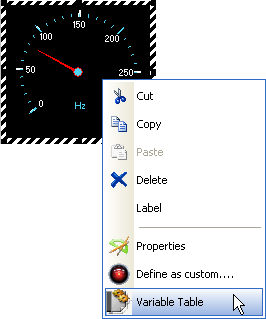
To get the variable table to a given control, you will need to right-click on the control and select the Variable Table window from the pop up menu.
Variable table for a Angular gauge control with one input ( one needle )
Number of inputs and names used to denote the inputs are dependent on the control type. The following table lists the inputs relevent to each control.
| Control | Input Name | No of Inputs |
|---|
| Angular gauge | Needle | 1 or more |
| Alphanumeric | Input | 1 |
| LED | Input | 1 |
| Linear gauge | Pointer | 1 or more |
| Percentage bar | Portion | 1 or more |
| Scrolling Time Graph | Track | 1 |
| XY Graph | Axis | 2 ( x and y axes) |
To assign a variable
- First select the variable category from the Group combo box.
- Select the Variable.
- Select the Input number or name from the Input combo box. ( Needle, Pointer, Input, axis etc..)
- Press Add button to associate the input with the variable.
- Press Exit button to exit from the variable window.
To remove a variable
- Select the input number or name.
- Press Remove button.
 My basket |
Checkout |
Add to email list
My basket |
Checkout |
Add to email list




 Edit
Edit History
 Print
Print Download (.HTML)
 PDF
PDF