Making Customizable overlays
This topic contains useful information you need to know when creating customisable overlays.
It covers the following areas:
- User customisation applications
- Using user properties to re-configure the overlays
- How the customised overlays are stored and used
- Using user properties with default and user defined groups
User customisataion applications
Advanced overlay editor allows you to create customisable overlays which can be then modified/re-configured by using the “Overlay customisation applications”.
Customisation applications are used to change design time settings of the overlays simply and quickly to suit users’ requirements.
Two customisation applications are provided for video and dashboard overlays:
Using user properties to re-configure the overlays
By design, customisation applications don’t display any built-in properties of overlay controls and can’t be used to edit the built-in control properties directly. To change the design time property settings through the custom tools, first you should define user properties and then you must link them to the built-in control properties using the Advanced overlay editor.
Those user properties are displayed in user customisation tools when you load an overlay.
Example:
The following dial gauge was designed to display speed from 0 to 100 kph.
You can add following user properties to make this dial a general purpose gauge:
- Minimum and Maximum to configure the ranges
- Variable to configure the data it displays
- Unit to show the unit name
Further you can add user properties to change the colour scheme of the dial:
- Variable colour
- Unit colour
- Tick value colour
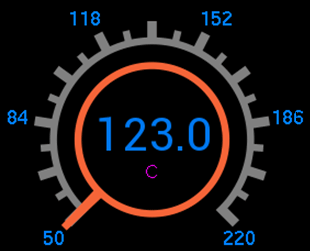
Following image shows how the dial looks like after configuring it to show the data from a temperature channel from 50C to 220C. (variable and unit colours were also changed)
Note that a single user property can be bind to more than one built-in property in the same control or different controls as long as the type of the user property is equal to the type of built-in properties. In the above example, tick values were displayed using “Simple text” controls. “Tick value colour” user property was bind to the “Text colour” property of all those simple text controls.
See also:
How the customised overlays are stored and used
Customisation applications do not make any changes to the original overlay files. I.e. when you change the settings of an overlay file using a customisation application, the application stores the customised settings of that overlay and a reference to the original overlay in a separate configuration file. This allows you to have different custom settings for your overlay files.
The following diagram shows the connections between overlay files, customisation applications, configuration files and the applications that uses customised overlays.
Using user properties with default and user defined groups
A typical overlay consist of following types of objects and we are going to see how we can arrange them to make a re-configurable overlay.
“Default” group
This built-in group is the only object present in a new design. When you add controls to the design area, they automatically get assigned to this group
User defined groups
You can add more groups to your design using the “Groups” dialog. User defined groups help you to break your design into smaller, more manageable pieces instead of keeping all controls under the default group. User defined groups also helps organise logically related user properties together
User properties
User properties help you to make re-configurable overlays. Note that user properties have to be defined under a group (“Default” group or a user defined group).
- A user property defined under the built-in “Default” group becomes "globally applicable user property
Globally applicable user properties can be used to access the "built-in properties of controls" which are belong to any group. In other words, by defining global user properties, you can add global settings that can be applied to all (or several) groups at once.
Note: These user properties are displayed under "Global_settings" group in customisation tools.
For example, if you want to change the text colour of all simple text controls which belong to different groups in an overlay:
- Define a colour property under the "Default" group
- Bind that property to text colour property of all simple text control
- A user property defined under a user defined group can be used to change the design time settings of controls belong to the same group.
 My basket |
Checkout |
Add to email list
My basket |
Checkout |
Add to email list




 Edit
Edit History
 Print
Print Download (.HTML)
 PDF
PDF