User Interface
On this page
Design Environment
Before moving on to the more advanced parts of the Monitor application, we need to examine the design environment that you will use to create your own interfaces, controls and variables etc….
There are three windows in the design environment.
- Design window
- Controls & controls list window
- Variables window
Design window
The design window is used to place controls and to define the variables that are on them. This window acts as the control interface in the run mode, and you may insert controls using the drag & drop, pop-up window or menu functions.
You can add new tabs into the same Design window and place different controls and variables onto them. These multiple interfaces will be saved into the same monitor profile ( MON ) file.
The pop-up on the Design Window
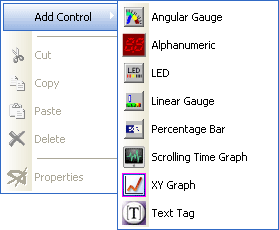
If the user right-clicks on the design window, a pop-up menu will appear. It has the following functions:
|
|
Add Control
Used to add a new control (for more info on how to add, edit and delete controls click here)
|
|
Cut
Menu always disabled
|
|
Copy
Menu always disabled
|
|
Paste
If a control is previously Cut or Copied, then this menu will be enabled. Click on this menu to paste a copy of that control. It will be placed in the top-left corner of the menu.
|
|
Delete
Menu always disabled
|
|
Properties
Menu always disabled
|
Controls & Controls list window
This window allows you to view the same information in two different ways. The Control section lists the set of available controls in a tree-like manner, where as the Control List section presents them as a list of small thumbnails. You can use these windows to drag and drop controls onto the design window.
The customized controls will be placed into the Controls section, whilst the new thumbnails of them are placed in the Control List section. The user can change the space given to both the Controls and Control list sections, by using the splitter that is between them.
Variables window
By using this window, the user can drag and drop variables onto controls that are placed in the design window, and then customize them as needed. The available variables are placed within their respective category. There are two types of variables:
- pre-defined and
- user defined.
You may change some of the properties of the pre-defined variables, whilst program user defines variables from scratch according to your specific requirements.
The Operation Windows
These windows may be moved, resized or closed. You can, of course, move the windows around the screen as you require. To do this, you will need to move the mouse pointer just before the header line and drag and drop the window in the place that you want it. The Operation Windows will attract to the corners of the main window and will automatically avoid overlapping with each other.
Once the mouse pointer is placed in the margin of a splitter, it will change to either a Left/Right, or an Up/Down pointer. If it is a Left/Right pointer (Vertical splitter then you can drag the margin line and resize vertically. Alternately, in the case of an Up/Down pointer (Horizontal splitter you can move the splitter and resize horizontally.
You can open or close splitters whenever you need to. The exit button of the splitter is placed at the top right corner. Whenever a window is closed, you can reopen it using the “Window” icon on the toolbar or using the Window Menu.
Operating Modes
There are two Operating Modes in the Monitor Software.
1. Edit mode
2. Run mode
Edit mode
When the monitor software is opened, it will usually be in this mode. By using this mode, you can add controls to the Design window; set the properties on the placed controls; move, resize and customize controls; add variables to the inputs; customize variables; add multiple tabs and Save and Load configuration (Profile) files ( MON files).
Run mode
Once you have finished configuring the interface, a data source should be added to capture the data that comes out of hardware devices. This must be done before performing a run operation. When in run mode, the controls will be immediately refreshed according to the incoming data. Whilst in run mode, you will not be able to re-configure the system.
Tabs
This powerful tool allows you to arrange the windows into layers. You can toggle between the different screens by using the navigation tabs at the bottom of the design window.
 | To select a tab, click on it using the left mouse button. To re-name a tab, right click on it. |
 My basket |
Checkout |
Add to email list
My basket |
Checkout |
Add to email list




 Edit
Edit History
 Print
Print Download (.HTML)
 PDF
PDF